How to recover lost or deleted Notes from iPhone or iPad

We're so used to creating notes, photos and memos on our phone, we get used to always finding them there at the tap of an icon. One day your work is there, the next it's gone. You lose ideas and valuable information that could come in really handy in a week or two.
Reincubate builds software that goes well beyond iCloud backup's capabilities, in the sense that you'll have the ability to browse through numerous backups made over time, preview your files, and recover what's needed. It's just like a history of everything you created with your iPhone, all in your hands.
Let's walk you through using iPhone Backup Extractor, to recover all your Notes and deleted Notes from your iTunes or iCloud backup. Not sure if you have a backup downloaded on your computer? You can find all iTunes backups stored on your PC or Mac, by going to iTunes → Edit
(from top menu) → Preferences → Devices tab.
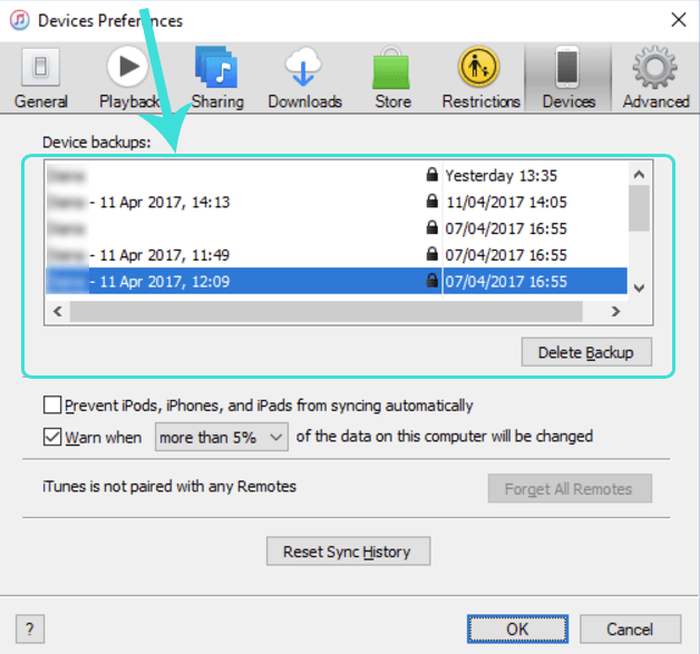
Above you can see the available iTunes backups and the date when they were created.
As long as your Notes have been backed up, you can recover all your data by following these simple steps:
-
Download and install the free edition of iPhone Backup Extractor.
The free edition is limited to extracting only four files at a time. That's OK for most users, though if you want to get them all back at once, you might want to register.
Extract your Notes
Once you've installed iPhone Backup Extractor, it will automatically look for iTunes backups located in your default backup folder.
If you want to recover your Notes from an iCloud backup you should first tell iPhone Backup Extractor about your iCloud account, by clicking on the
+button, or on the "Click here to add an iCloud account" text. Other than doing that, getting Notes from an iCloud backup works in exactly the same way. 💫If you have multiple backups, you should select the one that contains your Notes, from the left window of the iPhone Backup Extractor.
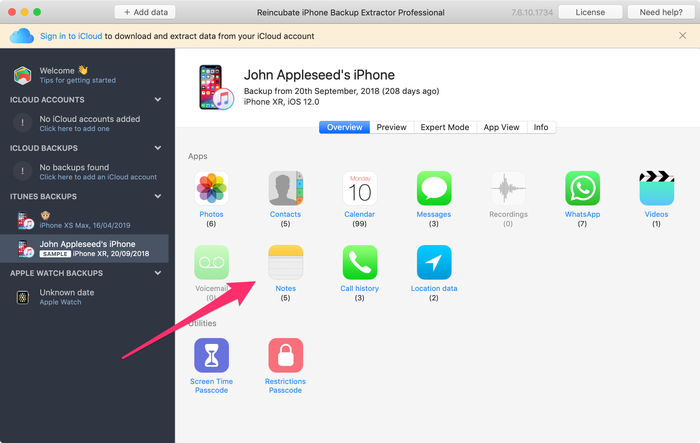
To retrieve your lost Notes, look in the "Overview" section and click on the Notes icon.

Extract Notes with iPhone Backup Extractor with one click Choose the destination folder where you want to extract your data and then click "OK". iPhone Backup Extractor will recover all your Notes (including the deleted ones) from your iTunes or iCloud backup.

Succesfully extracted Notes!
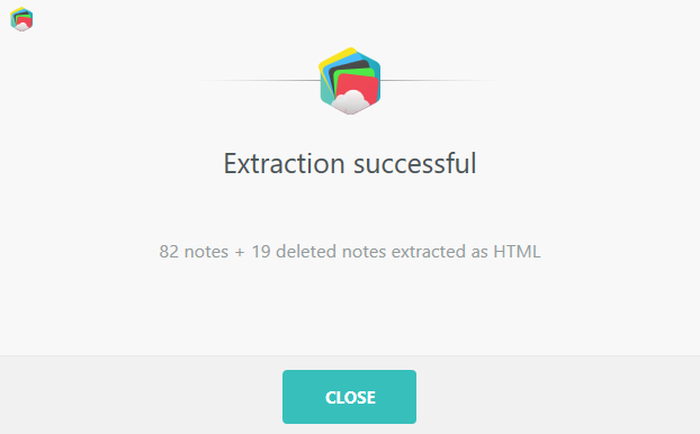
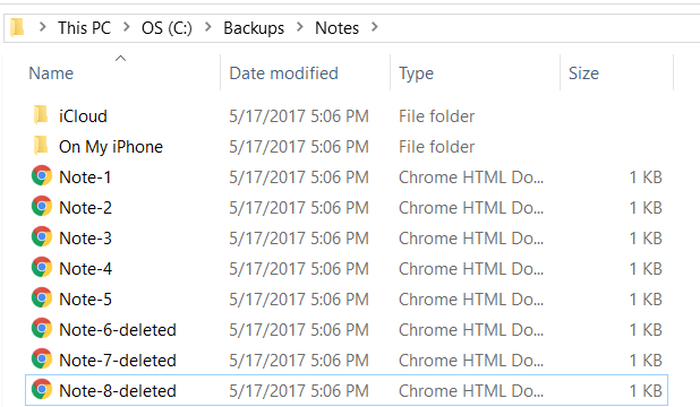
That's how easy and quick you can get back all your Notes and attachments. Now browse the folder where you've extracted your Notes, and find your valuable data.
You should be able to see all notes including the deleted ones.
This method is also useful when:
- You want to download your Notes on your computer or if you need to retrieve the files attached to your Notes
- You want to extract your Notes from devices with two-factor authentication enabled (Hint: it's built into iPhone Backup Extractor, nothing extra is needed.)
- You need to extract your Notes from encrypted iTunes backups
- You want to get your Notes from the iCloud even you have no access to your iPhone
- You want to recover your Notes from any iOS version including the latest (we've supported them all)
Recovering Notes before they're purged
There's another approach that can be helpful when looking to recover Notes from an iOS device. When a note is deleted, it'll be moved to the "Recently Deleted" folder within the Notes app for 30 days, before it gets permanently deleted. You can find and recover these Notes like so:
- Tap "Back" in the Notes app to see the list of all folders
- Tap on the "Recently Deleted" folder to see it
- To recover a Note from the deleted list, tap "Edit" in the top-right...
- ...then tap the Note to select it...
- ...and tap "Move To" in the bottom right. This'll let you move the deleted Note back into a regular folder: and undelete it.
Have you had any issues recovering your iPhone, iPod or iPad's Notes? Let us know in the comments below.


by Елена
Здравствуйте, можно ли восстановить потерянные Notes в случае проведения некорректной синхронизации, в результате которой действующие заметки на телефоне были заменены старыми заметками, хранящимися на gmail, ранее синхронизированными со старым телефоном. Как точно произошла эта замена, я сказать не могу, так как по незнанию выбирала разные опции на телефоне, скорее всего я поставила галочку на приоритет заметок gmail и синхронизация произошла путем замены новых на старые. Проблема в том, что ни iCloud не использовался (опция была неактивна) ни с помощью iTunes бэкап ни разу не делался. То есть заметки никогда нигде не сохранялись.
Есть ли возможность восстановить заметки на телефоне, может существуют какие-то программы или можно сделать это путем установления времени и возвращения данных, которые были на телефоне до синхронизации? Заранее благодарю за помощь.
reply by: Reincubate Support
Привет Елена, спасибо за ваш комментарий. Это сложный вопрос. Если вы храните заметки в учетной записи, отличной от iCloud, они на самом деле хранятся в виде черновика электронной почты особого типа. Если они были удалены, это означает, что эти черновики были удалены с вашего почтового сервера. Наилучшим подходом здесь было бы проверить, есть ли у вас почтовый клиент, который кэшировал вашу электронную почту, а не обновлял ее с момента удаления, - которая содержала бы копию этих писем.
Русский не наш родной язык, но если вы напишите нам, мы сделаем все возможное, чтобы помочь вам здесь!
by Shiir
Very good
by Amy
Thanks
by Naz
How do I extract more than 4 notes with the free version?
reply by: Reincubate Support
Hey Naz! You can do this using "Expert mode" and access everything in your backup that way, without to buy a license. It's a little easier if you upgrade, though, as they you can use iPhone Backup Extractor's automated exports. Reach out if you need help! 🙂
by Rick Shafer
Hi there, just used my licensed copy of IBE to recover a couple of dozen notes from an iTunes backup. They vanished after I turned OFF syncing under iCloud settings (why didn't iOS prompt me to keep a local copy like it did for reminders?!) Anyway, the deleted notes now appear as .html files in a folder on my Windows 7 PC. What is the recommended method of getting them BACK on the iPad? Thanks!
reply by: Reincubate Support
Hi Rick! Apple don't provide a neat format for importing and exporting notes other than PDF. So you could import them in that format, or as HTML, or by copying and pasting the text. There are two approaches:
by sheyda bagheri
hi, I bought a new iPhone, when I sign Apple ID out from old iPhone, all the notes have been deleted:( when sign in with the new on, just stayed the notes from 2013 and the rest of notes have been deleted.Is there no way to recover with my iPhone?
Thanks
reply by: Reincubate Support
Hi Sheyda, load up the free version of iPhone Backup Extractor to see if you have any backups of your older phone. You likely will do — and if so, you'll be able to see and recover your notes that way. Good luck!
by Rossana Segrera
Besito recuperar mis notas
reply by: Reincubate Support
🙂
by Alex Standerwick
In windows - copy text and create a new note in Outlook - then synch notes with Outlook in iTunes
by Ed Topolski
I opened the extracted file with a web-browser and did a copy/paste into an e-mail to myself as suggested. On the iPhone I opened this e-mail and did a copy/paste to a New NOTES page. It was very easy to do and left the NOTES in the same condition that they were created.
by Gitta
First of all sorry for my english.
I have downloaded your software yesterday and want to thank you. I could restore my contacts and safe my photos. The backup was lost but your software found my datas.
My question is: is there any chance to put back my sms on my iphone? I have the iphone 4, use W7 64 bit.
Thank you in advance,
Gitta
reply by: Reincubate Support
Hi Gitta, we're glad it worked for you! Yes, we've got a guide on how to restore data back to your phone. Let us know if you need help!
by Colin Wray
Getting them back on my IPAD was easy - emailed them to myself and copy/pasted them back into notes.
by Geedard
It should be possible using a combination of MS Office OneNote (can be found within MSOffice suite) and MobileNoter (an iPhone App available via the iTunes App store. First, download and install MobileNoter from the iTunes App store to your iPhone. Follow all instructions from the App provider, including installing the sync software to your PC. Once done, "print your notes" to MS OneNote (to do this, click Print and then select "Send to OneNote" as your printer). This will "print" your note (s) inside OneNote (rather like printing to PDF, except printing into OneNote. Finally, sync your OneNote book to your iPhone using the sync button in MobileNoter(I use the WiFi sync mode) and there you have it, all your notes back on to your iPhone conveniently packaged into one structured Notes App (with numerous other formatting options which make Mobile Noter so much better than the basic iPhone notes app).
PS - fortunately, I've never had to do this myself yet...but there's no reason at all why it should nto easily work. I wanted my notes formatted "as is" on both by laptop and my iPhone. MS OneNote provides exactly that. The fact that you can send all your notes / emails / web pages / pdf's / spreadsheets etc etc to One Note makes it very convenient to use. It creates books of individual notes, which you can move around, edit, format, structure as you wish. MobileNoter is simply a great iPhone app designed to sync and work directly with One Note. Importantly, you can set up a password to protect entry to iPhone MobileNoter, making your notes more secure if they contain confidential info. When you launch MobileNoter, you have to enter your password before you can view your notes.