How to export and transfer iPhone contacts

Difficulty: easy
Steps: up to 6
Time needed: 2 - 10 minutes
Getting hold of your iPhone contacts in an accessible format, transferring them to another phone, or retrieving deleted contact numbers can be a painful and time-consuming process. We’ve created this guide to help you solve these issues quickly and painlessly.
This guide will help you do the following things:
- Export contacts from your iOS address book in a format that you can easily import elsewhere
- Recover lost and deleted contacts, even if you might not have a backup of them.
- Transfer & restore contacts to another iPhone, or to an Android phone, Gmail, or other systems.
If you only need help with a specific stage, you can click the links to dive straight into the action. If you're not a words person, we've included a video below to take you through it.
Exporting contacts from iPhone
This guide will take you through 4 different ways to export your contacts:
- Method 1: Export your contacts without iTunes or iCloud
- Method 2: Export your contacts from an iCloud account
- Method 3: Export your contacts directly on an iPhone or iPad
- Method 4: Export your contacts from icloud.com
Method 1: Export your contacts without iTunes or iCloud
If you want to export your contacts without using iCloud or iTunes, you can do so by using iPhone Backup Extractor to view and export your contacts in a number of formats. To do this, you’ll need a recent backup of your iPhone. Your iPhone may be configured to store its contacts on iCloud, and it may also back them up automatically to iCloud or via an iPhone backup to your Mac or PC.
If you don’t have a backup of your iPhone, you can use iPhone Backup Extractor to create one. Click here to find out how to create a backup.
Step 1. Install the free version of iPhone Backup Extractor (download).
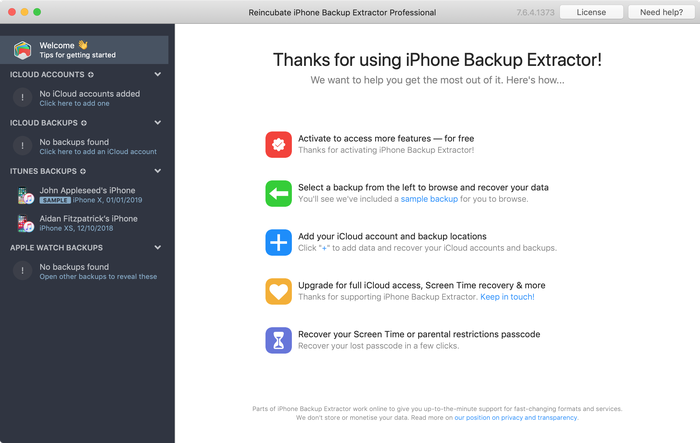
As soon as it runs, it will list all of the backups on your computer, and when they were last taken. Here's what that looks like:
Step 2. View & export contacts
Now for the really easy part: viewing and getting contacts out with iPhone Backup Extractor.
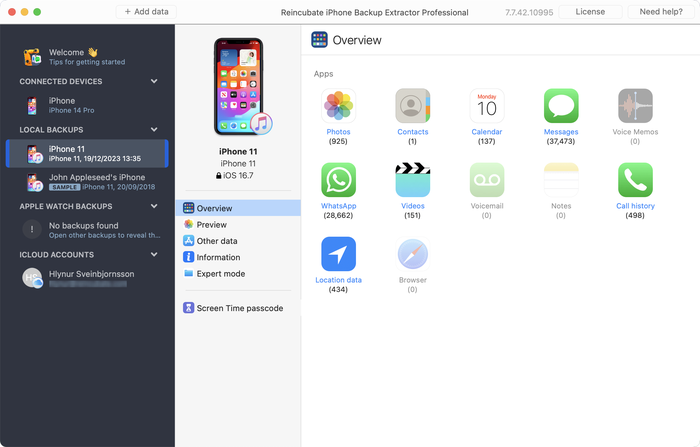
Click on the backup that you want to view in the left-hand part of the iPhone Backup Extractor window. The main part of the window will then update to show you an overview of the data in your backup. To export all of the contacts from your iPhone, click the "Contacts" icon or the text immediately underneath it.
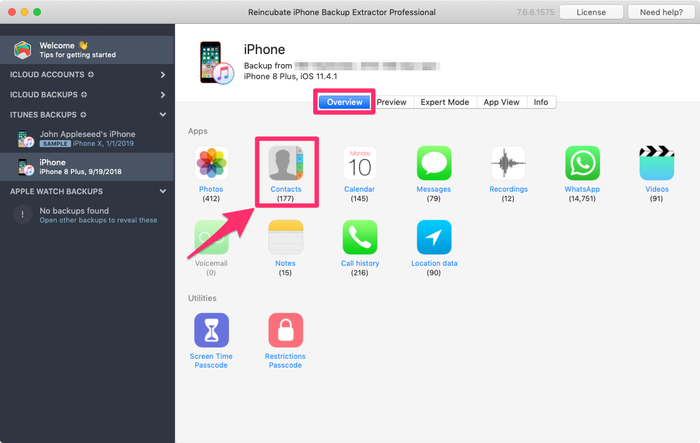
iPhone Backup Extractor will ask you where you'd like to save the exported contacts, and once you have chosen a folder, your contacts will be exported there.
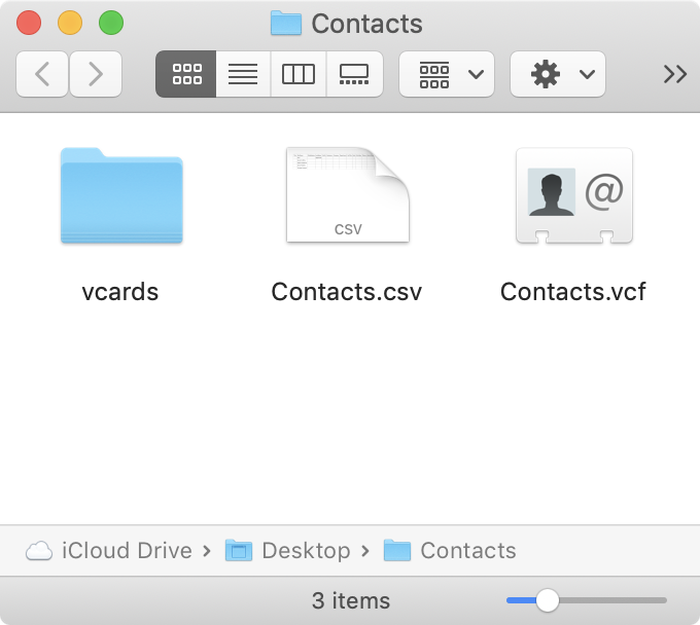
We export contacts in three formats simultaneously, so that you can use them with just about any other system that you might want to view or import them with. These are:
Contacts.vcf: this is a single, large VCard file, which most address book systems use. All of your contacts are together in one file.vcards/*.vcf: we create this special "vcard" folder to store individual VCard files in. Some contacts systems can't work with the nice neat way of having all of your contacts rolled up into one card file, so having them split out can be handy. If you wish to send just a single contact to someone, this is best.Contacts.csv: this is a comma-separated list of your contacts. You can view it in a text editor, or with a spreadsheet like Microsoft Excel. If you want to copy and paste out a few details, this format might be best for you.
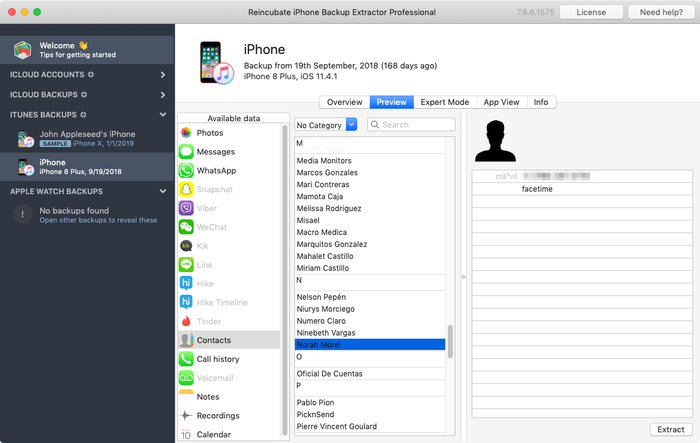
If you'd like to browse the contacts and selectively export them, there's an easy way to do that, too. Rather than clicking on the contacts icon, instead choose Preview, and then select Contacts from the list on the left part of the window. That will let you browse through the contacts available for export. Select the ones you need and click Extract.
Method 2: Export your contacts from an iCloud account
If you use iCloud, you can also use iPhone Backup Extractor to extract your contacts. Here’s how:
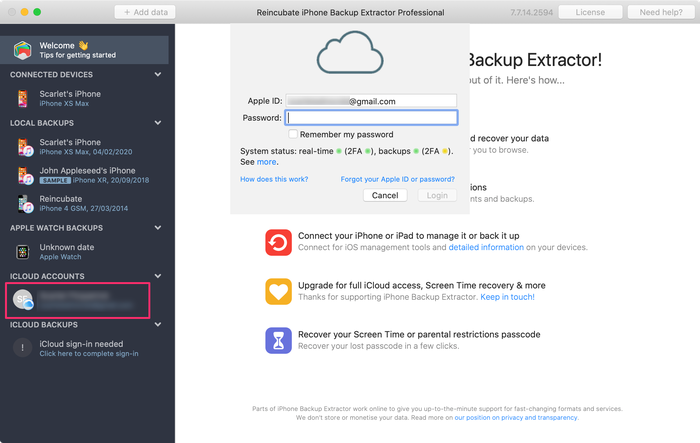
Select your iCloud account under
iCloud Accountson the left hand side and log in with your credentials (you may want to keep your iPhone handy, as this will require 2FA).
Login to your iCloud account -
Once you’re logged in, click on your iCloud account, then select
Contactsin the Overview pane.
Export your iCloud contacts
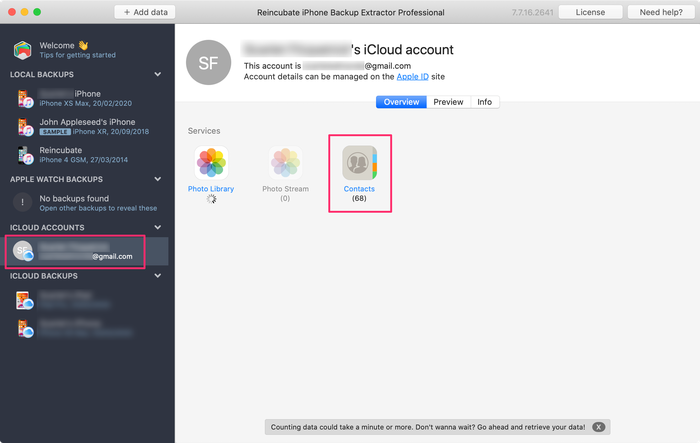
Here, you can choose the location on your computer for the export, then your contacts will be extracted in the same three formats as when using an iPhone backup: Contacts.vcf, vcards/*.vcf and Contacts.csv
Method 3. Exporting your contacts directly on an iOS device
If you don’t have a computer to hand, and still need to export your contacts, there is limited support on your iPhone for exporting contacts directly. Unfortunately, using this method you will only be able to export one contact at a time, but if you only need to export a couple of contacts, it might be the quickest option. Here’s how:
- Go to the Contacts app on your iPhone.
- Select the contact you want to export.
- Select
Share Contact.
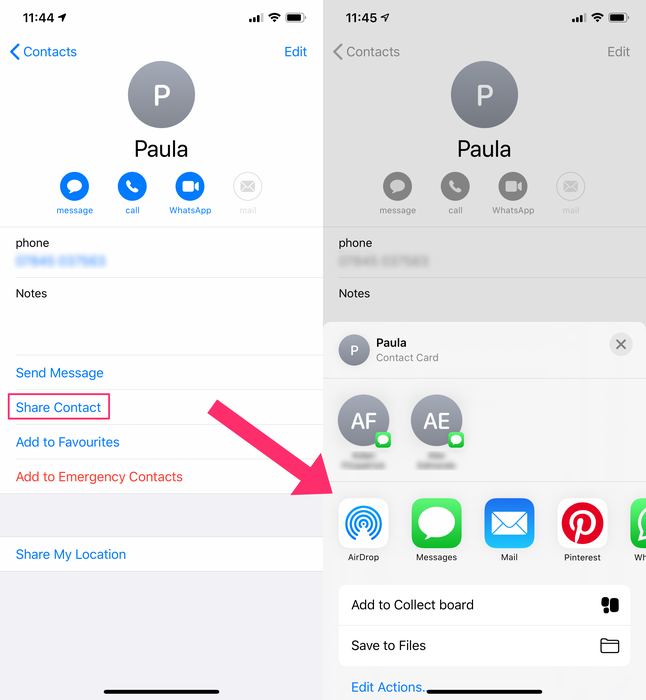
This gives you the option to share via messages, email, Dropbox, Google Drive, and other apps on your iPhone. If you're sharing with another iOS or macOS device, you can use AirDrop.
Apple provide some guidance for exporting contacts on macOS and from the iCloud, but not directly from iPhones.
Method 4. Export your contacts from iCloud.com
If you have your iOS device configured to synchronise its contacts with iCloud (ie. not just having iCloud enabled and contacts on your device, but have the contacts stored in the iCloud account), you can use the iCloud website to export your iCloud contacts. Here’s how:
- Go to Apple's icloud.com site and log in.
- Select the Contacts icon.
- From here, you can select and export contacts individually, or click the cog at the bottom left of the screen and select all contacts, then export.
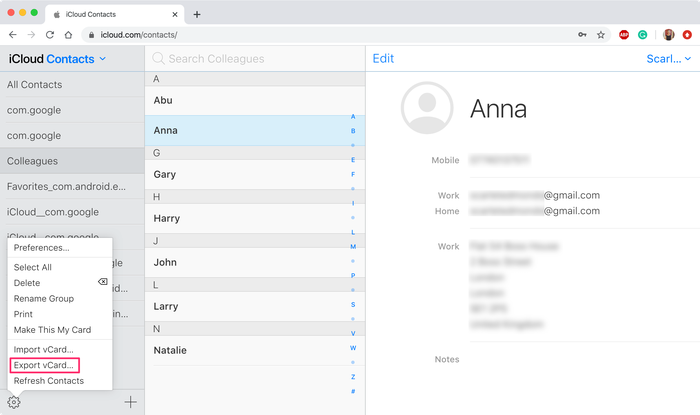
Note that if you use iCloud to export your contacts, you can only export contacts as single VCF files.
Recovering deleted contacts
The walkthroughs above show you how to export contacts, but what about if you’ve deleted these contacts from your iPhone? Here are some methods you can use to try to recover deleted contacts.
Recovering Contacts without iTunes
iPhone Backup Extractor can automatically search for and recover deleted contacts on your iOS device. It can do this with a number of proprietary forensic iOS recovery techniques.
In order to recover deleted contacts, you can use the normal process shown above. But ensure that the "Show Deleted Data" option has been ticked in the app's "Utilities" menu.
Recovering Contacts via icloud.com
If you’ve deleted contacts from your iPhone, but haven’t created a new iCloud backup, you can access your deleted contacts through your iCloud at icloud.com. Follow the steps above for exporting contacts from iCloud.com to recover your deleted contacts. Click here for more information about recovering contacts from iCloud.
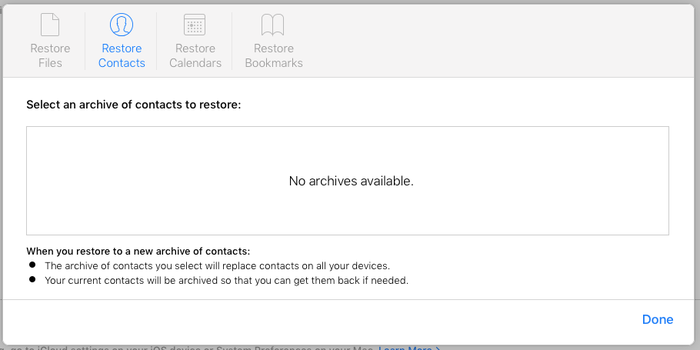
Hidden away on icloud.com under Account Settings → Restore Contacts, you’ll find a limited interface for restoring contacts. Strictly, this restores all of your contacts to a point in time, so whilst it will restore deleted contacts, it’ll also remove more recently added contacts.
Similarly, depending on what you plan to do with the exported contacts, it may make sense to configure your iPhone to sync with a contacts service which could, for example, also synchronise with other, non-iOS devices. If in doubt, reach out to our support team for guidance.
Recovering contacts with Google Contacts
Many iPhone users use their Gmail accounts for email and contacts. If this is the case, and your default contacts account is your Google account, and not your iCloud account, recovery from iCloud doesn't make sense. Fortunately, it's possible to recover contacts from Gmail easily enough, too. Here’s how:
- Head to contacts.google.com and
- Click the settings cog on the left-hand side of the window
- Click "Undo changes"
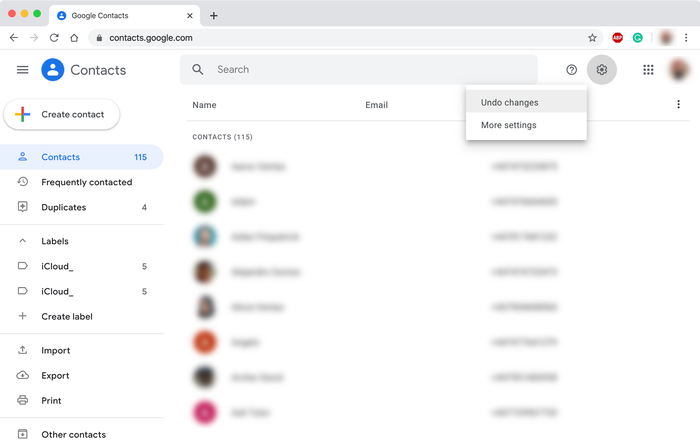
This will bring up an "Undo" window, and that'll let you roll back and recent changes to contacts. Be aware that as well as recovering deleted contacts, this will also undo any changes you've made recently. So be careful!
How to transfer your contacts to an iPhone
Transferring your contacts is even easier than exporting or recovering them, and takes no more than a few minutes. Before you can import your contacts, you need to export them from the iPhone they’re currently stored on. Follow exporting contacts Method 1 above before you begin to import these contacts to your new iPhone.
Here’s how to import your contacts onto a new iPhone:
- From your extracted contacts folder, look for the file called
Contacts.vcf. Email this file to yourself as an attachment. - Open the email on your iPhone. Make sure you are using the default email client application from Apple, otherwise the process might fail.
- Tap on the attachment and you'll be asked if you want to transfer all contacts to your iPhone. Click
Add Contacts.
You will be asked if you’d like to create new contacts or merge them with existing contacts on your new iPhone. Once imported, you should now have all your contacts back on your iPhone.
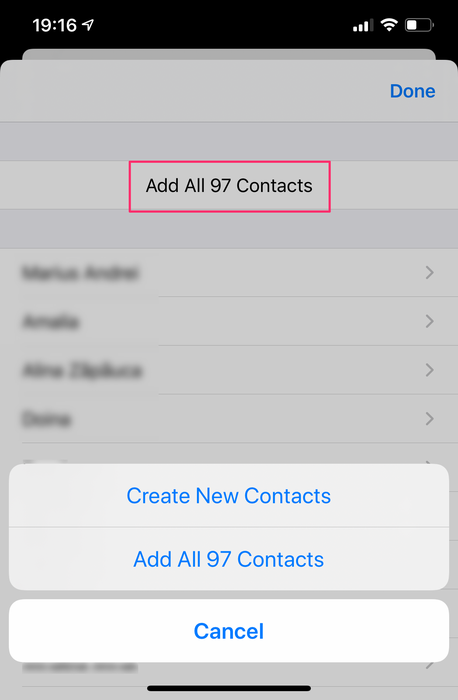
If you want to import your iPhone contacts to other devices or systems, follow the links below for more guides and walkthroughs.
- How to import iPhone contacts reincubate.com
- How to import to Android reincubate.com












by Brian
Very helpful. However, you left out an asterisk in the windows version of the copy comment above, which turns out to be vital. The command to put all .VCF files into one is:
Otherwise, brilliant and helpful, and it works.
reply by: Reincubate Support
Brian, thank you! I've reworked the article a little to make the instructions all the easier. ?
by shota
What can the free version do?
reply by: Reincubate Support
HI Shota, the free edition will let you recover your contacts 4 at a time. The paid edition removes that limit and adds iCloud support.
by Henry
Can we recover them with ID photos?
reply by: Reincubate Support
Hi Henry, yes you can: our exports will also pull out associated contact photos, and you'll see these in the preview.
by Tori
My iPhone is not keeping my contacts saved. if I go to save three of them, it'll take away the first to and act like I never saved them and keep the last one til I try and save more contacts. what is going on with iOS 8
reply by: Reincubate Support
Hi Tori, we hope to see an update from Apple soon to resolve this iOS issue you've seen. In the meantime, restarting the device can help.
by Javi
Does this app able to recover pictures with the original date and GPS data?
Thanks
reply by: Reincubate Support
It does, you'll find all of the geotags and EXIF data are preserved on your photos. ?
by Manuel Garcia
i only want my contacts to be recovered but it only lets me to get 4 contacts is there any way to get the rest without paying ,i know it is support to the developers but I don't really want nothing else than the numbers help me plz
reply by: Reincubate Support
Hi Manuel, sure: if you select the contacts four at a time in preview mode, you'll find you can get them all out. It takes a little longer than with the paid edition, but it'll do it!
by Andy
I've lost ALL my contacts on iPhone, it was a very useful upgrade...
reply by: Reincubate Support
Andy, sorry to hear this. Have you tried iPhone Backup Extractor to check your backups? You can either restore from iTunes or, if that fails, extract the contacts using our application. If you have a corrupted backup or need to ask questions please contact support.
by Brantlie
It took me a while but I got my contacts back thanks to this information. Thank you so much!!!
reply by: Reincubate Support
Brantlie, you're welcome. Glad we could help ?
by Travis
After going through I tunes for over an hour with an apple tech. I still cannot access my contacts, photos or text messages. Is your application made possible to retrieve this list information? I'm not computer inclined any useful information will b helpful
reply by: Reincubate Support
Hi Travis, it is, and we'd be happy to help. Give it a go!
by LOST12
Hi, I had to restore my computer. Unfortunately none of my info could be backed (due to viruses). How can i retrieve my contacts if all my folders on my new laptop is empty?
reply by: Reincubate Support
Our contacts recovery guide has a few tips for this. One approach is to recover the contacts from the service that originally stored them, and the guide covers that. If in doubt, reach out directly to us and we'll do what we can to help.
by Jannine
It says i have 455 contacts and when i do the steps it will only let me extract 4 of them what do i do?
reply by: Reincubate Support
Hi Jannine, you can get your contacts out 4 at a time using the free edition. It's possible to get them all, though it'll take a little while. If you buy a license you'll see iPhone Backup Extractor will extract all of your contacts in one go.
by vicki brown
Hi is there a mac version to download of the iphone backup extractor plz .If so where and how do i retrieve it .thx Vicki
reply by: Reincubate Support
Hi Vicki, there sure is: if you click the download button and you're using a Mac, you'll automatically get the Mac version.